TiviMate
A favorite on Android-based screens and sticks, with a tidy guide and room for a short list of favorites per person.
A house gets set up one screen at a time. Start with the TV the family gathers around, then fan out to tablets, phones and computers. Every walkthrough asks for the same two things: a player app and the sign-in details from your welcome email.
Before the first screen
The subscription is the line-up. A player app is only the window onto it, a small program that draws the channel guide and plays the picture.
Work through the house room by room: living room first, then the kids’ tablet, then phones, then the desk where homework happens. Planning to watch on several screens at the same moment? Ask support by email first.
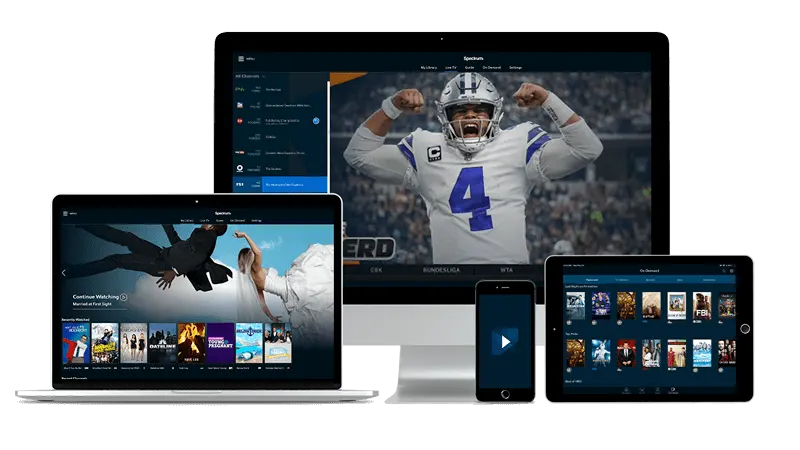
A favorite on Android-based screens and sticks, with a tidy guide and room for a short list of favorites per person.
Light and simple. A sensible pick for a relative who would rather not wade through settings.
A familiar all-rounder for phones, tablets, computers and sticks, and a comfortable first choice when nobody has an opinion.
Pick your screen
The little stick behind the TV is the quickest route to a family screen. It slips into any HDMI input and answers to the remote everybody already knows.
Not every app is offered for every stick. When your first choice is missing, another of the three usually is.
Newer sets from both brands carry their own app store, so nothing extra has to sit behind the screen.
App lists change with the model and the year. If the store offers neither player, a streaming stick in an unused HDMI input solves it.
Sets and boxes built on Google’s TV platform have a complete app store, so this is one of the gentlest setups.
Voice search on the remote is the quickest way to enter an app name.
A natural fit for a household that already keeps its photos, music and messages in Apple’s world.
An iPhone can act as the keyboard through its built-in Remote feature, which beats typing with the TV remote.
The kids’ tablet is often the busiest screen in the house, and it needs only a few minutes.
Once one device works, every other iPad or iPhone follows the same pattern.
If a phone or tablet can reach Google Play, it can serve as a pocket screen.
Join home Wi-Fi before starting a long film, which keeps mobile data use down.
Whether laptop or desktop, a computer suits the homework desk, the kitchen counter or a second monitor.
Stick to the official download page of the app you choose and ignore links from unfamiliar sources.
Unlike the other screens, a MAG box skips the app store. It connects through a portal address and your box is recognized by its MAC address.
00:1A:79:AB:CD:EF.The portal URL arrives in the welcome email. If the box refuses to load, email support with the MAC address and your checkout email.
When a screen misbehaves
Install questions
Three: TiviMate, IBO Player and IPTV Smarters Pro. Which one you can install depends on the screen, so take the one your device’s store offers.
No. A MAG box relies on the portal address in your welcome email and is recognized by its MAC address, which sits on a sticker underneath.
Yes. Each screen gets its own player app, filled in with your sign-in details. Do the living-room TV first and add the rest one by one.
Add a streaming stick to an open HDMI input, or use a phone, tablet or computer. Any of those can run a player app.
Usually around fifteen minutes after checkout. If nothing has shown up by then, check the spam folder and write to [email protected].
Email support with the device, the app and what you see on screen. The contact page suggests what to write, and a practice run with the free trial shows how a setup feels before you buy.